
Set it up
1
Connect your accounts
Open Accounts and connect the account you already post on, plus at least one account to copy to. Each platform asks you to approve access on its own login screen. See Connect your accounts for each platform’s requirements.
2
Create a workflow
Click New workflow. Under Post from, choose the platform and the source account. Under Publish or back up to, choose one or more destinations. Click Continue.
3
Choose which posts to copy
Keep New posts going forward ticked to copy what you post from now on. Tick Existing posts as well to repost older posts on a schedule. Review the summary and click Create workflow.
4
Post on the source account
Publish a new post on the source platform the way you normally do. PostOnce picks it up on its next check and publishes it to your destinations.
5
Check the result
Open the workflow. The post appears with a status for each destination. When it shows Published, open the post on the destination platform to confirm it looks right.
Creating a workflow that copies new X posts to a LinkedIn Page
Your first workflow
When you sign up, PostOnce walks you through the same steps: choose where you publish first, choose where PostOnce should publish, then review. Clicking Activate & start trial on the review screen creates the workflow and starts your free trial.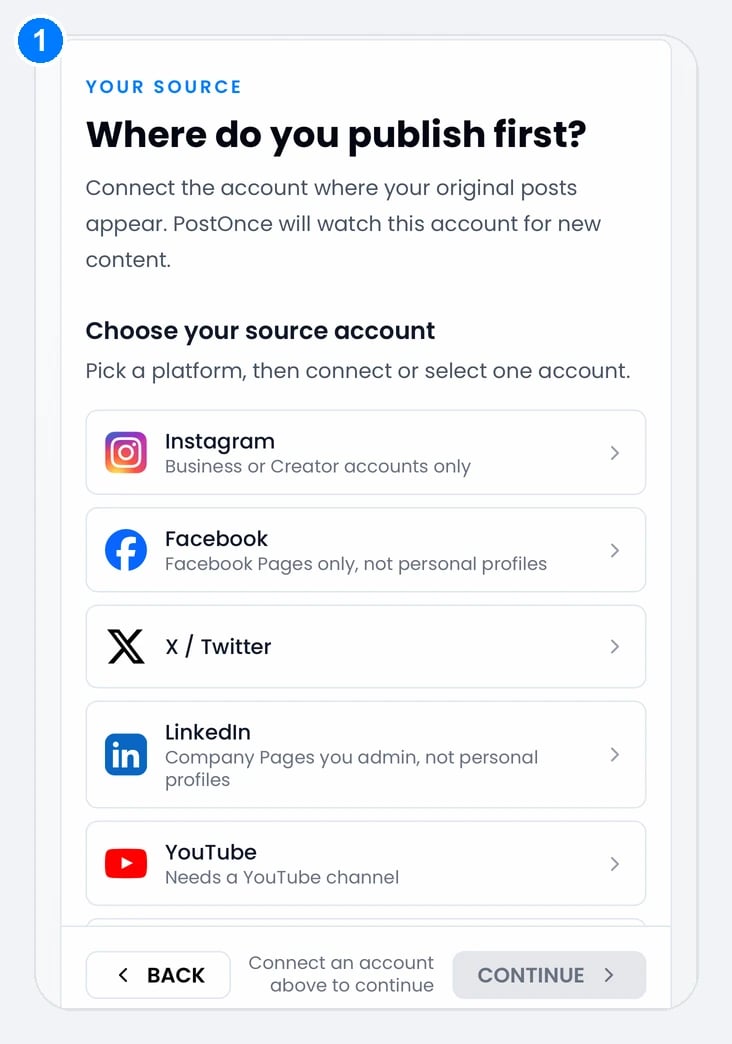
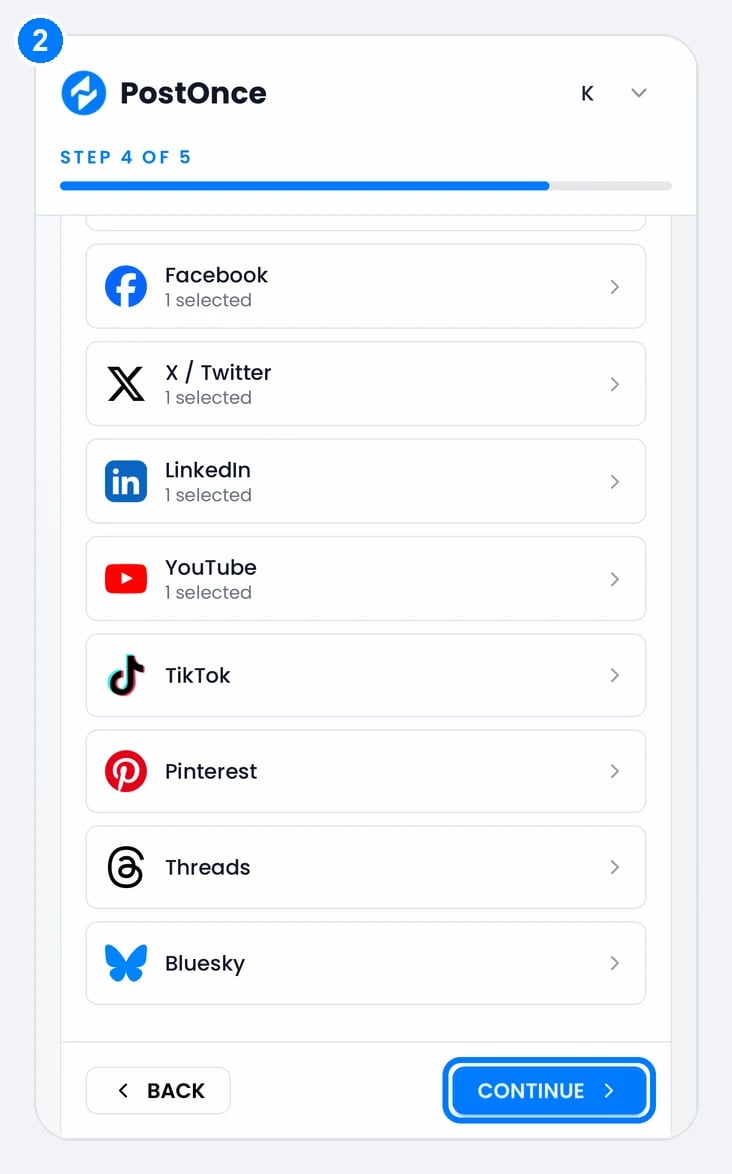
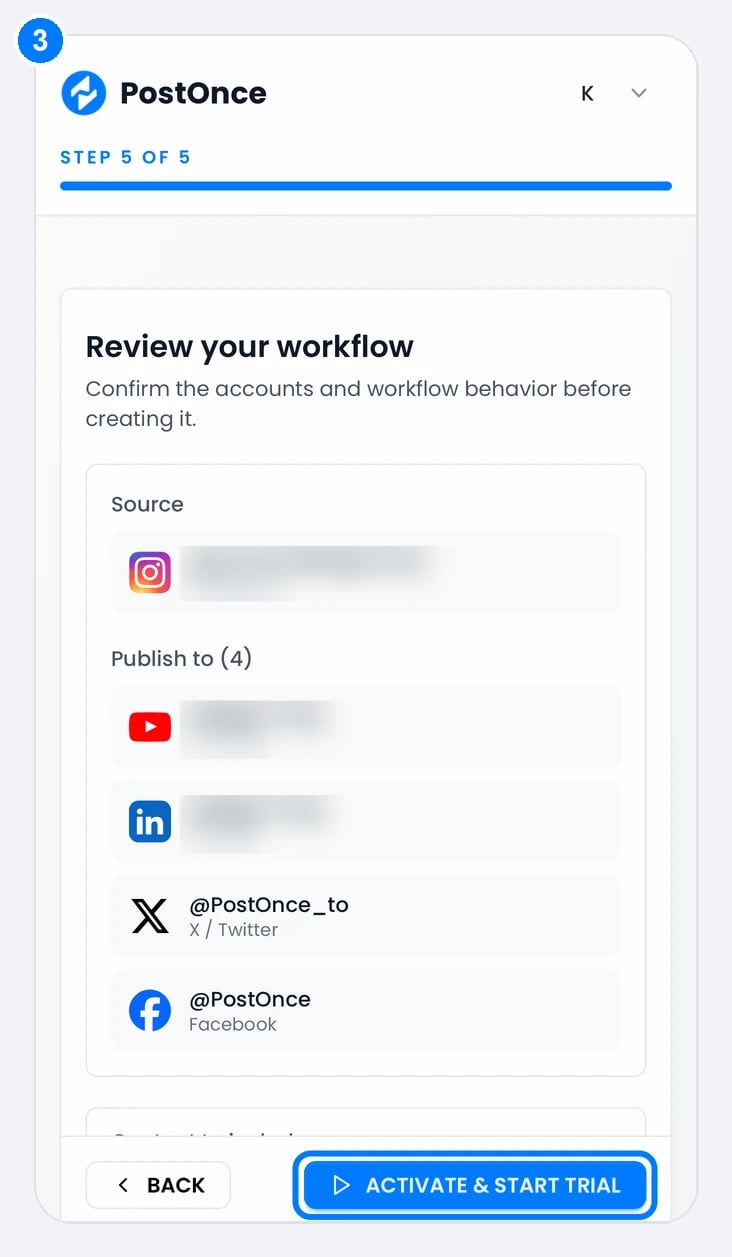
Signup: choose where you publish first (1), choose your destinations (2), then review and click Activate & start trial (3).
How often PostOnce checks for new posts
PostOnce checks each source account on a schedule, more often when the account posted recently. Your post is picked up on the next check, then published once the media finishes processing.
To check right away, open the workflow and click Check now. Long videos take longer to process before they publish.
The free trial
Try PostOnce free for 7 days. No card is needed. The 7 days start when you activate your first workflow, at the last step of setup (Activate & start trial). During the trial you can connect up to 15 accounts, create as many workflows as you like and publish up to 10 posts. When the trial ends or you use the 10 posts, publishing pauses. Your accounts, workflows and queued posts are kept. Choose a plan to resume. See Plans and billing.Next steps
Growing a new account?
Warm it up by hand for about a week before PostOnce posts to it.
Fine-tune a workflow
Change captions per platform, space out posts, or repost older content.
Check platform limits
See which videos, images and captions each destination accepts.